The brain
Throughout these pages the flight computer is the STM32 board and the bridge is the ESP32 board. The flight controller is the finished assembly — both boards together with the sensor suite — not either board on its own.
The dev boards
Flight computer — DevEBox STM32F4XX_M
| MCU | STM32F407VGT6, Cortex-M4F |
| Clock | 168 MHz (8 MHz HSE × PLL) |
| FPU | 32-bit float, fpv4-sp-d16 |
| Memory | 1 MB flash, 192 KB SRAM — the VET6 variant has 512 KB |
| Storage | W25Q16 — 2 MB SPI flash, fitted |
| Debug | SWD, 5-pin header |
| Size | 40.89 × 68.59 mm |
Bridge — ESP32-C3 0.42″ OLED
| MCU | ESP32-C3, RISC-V single core |
| Clock | 160 MHz |
| Memory | 4 MB flash |
| Radio | WiFi 2.4 GHz b/g/n, BLE 5.0 |
| Display | 0.42″ SSD1306, 72 × 40 visible |
| Debug | USB-C, native USB Serial/JTAG (no USB-to-serial chip) |
| Size | 24.8 × 20.45 mm |
Pinouts
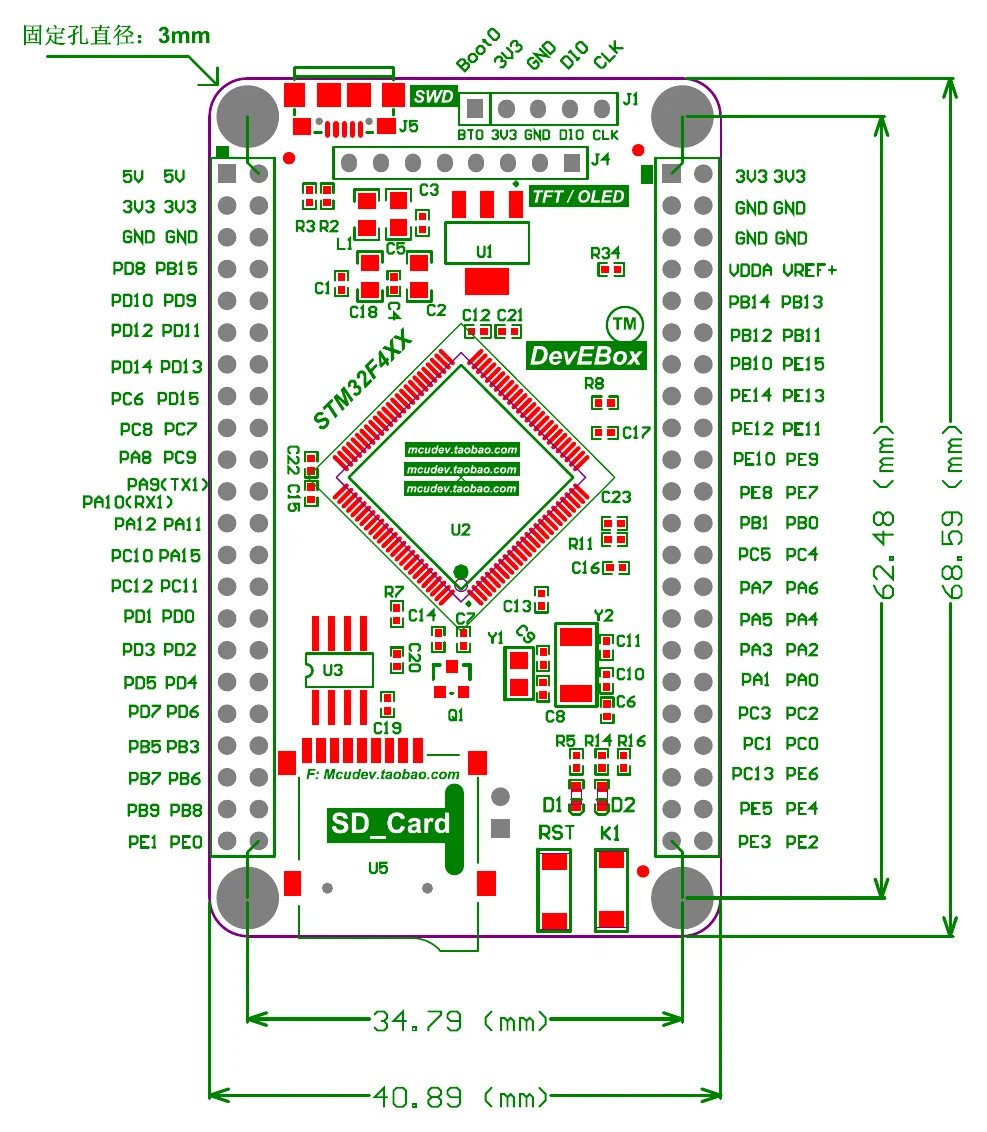
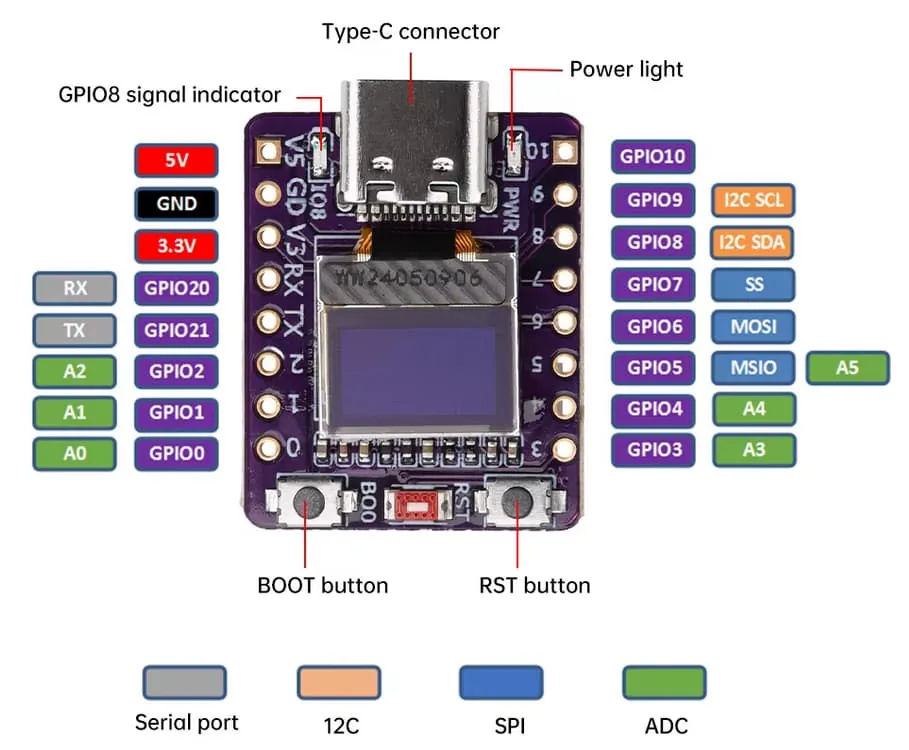
Left — flight computer: board dimensions and pin map, drawn by the vendor (mcudev), hosted by stm32-base.org. Right — companion board, from the Fritzing forum part thread; its I²C labels are wrong — see the warning below.
What is already wired
Flight computer — DevEBox STM32F4XX_M
Three things on this board are not accidents of choice — the firmware expects them:
The SPI flash is on the pins the firmware uses. CS PA15, CLK PB3, DI PB5,
DO PB4 — exactly the SPI1 assignment in the wiring reference.
The W25Q16 is fitted from the factory. Nothing to wire.
The LED and button are the ones the firmware drives. D2 on PA1 is wired in sink mode,
so it is active low. K1 on PA0 is active high.
The 8 MHz crystal is why the clock configuration works. CONFIG_STM32_RCC_PLL_M is 8
and PLL_N is 336: 8 MHz ÷ 8 = 1 MHz into the PLL, × 336 = 336 MHz, ÷ 2 = 168 MHz exactly. A
board with a different crystal needs PLL_M changed to keep the PLL input at 1 MHz, or the
core runs at the wrong speed and every timing in the firmware moves with it. Set it to your
crystal frequency in MHz under make 32raven-menuconfig → STM32 → Peripherals → RCC →
PLLM (input divider, 2..63).
Caution
Leave the TFT/OLED header (J4) empty. J4 carries SDI PB15, SCL PB13, CS
PB12, SDO PB14 — the same SPI2 bus the IMU sits on. The IMU has its own chip select
(PA4), so an empty header is harmless. But anything plugged into J4 shares a bus with
the sensor the aircraft flies on.
Bridge — ESP32-C3 0.42″ OLED
Every pin on this board falls into one of three groups — spoken for by the board, reserved by the chip, or free:
The display, LED and button are on the board. The SSD1306 panel is on GPIO5 (SDA) and
GPIO6 (SCL), the LED on GPIO8, the BOOT button on GPIO9. Nothing to connect.
Six pins belong to the chip. GPIO12–GPIO17 are the internal SPI flash and
GPIO18/GPIO19 are USB D−/D+. Neither is available to you.
The rest are yours. GPIO0/GPIO1 drive the flight computer's BOOT0 and NRST,
GPIO3/GPIO4 carry FcLink, GPIO10 the buzzer, and GPIO20/GPIO21 the telemetry UART.
GPIO2 and GPIO7 are spare. All of them are on a header, so nothing on this board needs
soldering to the PCB itself — unlike the flight computer, where one signal reaches no header
at all.
Caution
The labels on and about this board are wrong in two places.
The vendor drawing in Pinouts marks GPIO8 as I2C SDA and GPIO9 as
I2C SCL — the generic ESP32-C3 defaults printed on a template, not this board's
wiring. Here GPIO8 is the onboard LED and GPIO9 is the BOOT button; the display is on
GPIO5 (SDA) and GPIO6 (SCL) at address 0x3C. Because the I²C peripheral is routed to
the panel, there is no second I²C bus for external sensors.
The board's own silkscreen marks GPIO20 as RX and GPIO21 as TX, following the
chip's default UART0 assignment. This firmware drives them the other way round — GPIO20
is telemetry TX and GPIO21 is RX. The ESP32-C3 routes any UART to any pin
through its GPIO matrix, so this is legal and works; it also means wiring by the printed
label gives a dead link with nothing in the logs. Wire by GPIO number.
Stacking the boards
The bridge sits on top of the flight computer, over the microSD slot, on double-sided foam tape. It is the first physical step of the build, and the tape is the part to get right — it is holding two live boards apart as much as it is holding them together.
Warning
The tape is a spacer, not just adhesive. The bridge's underside is exposed pads and via tails; the microSD slot it mounts over is a metal shell. Pressed together, they short.
So the tape has to be foam, 1.2 mm or thicker — thin transfer tape sticks perfectly well and leaves almost nothing between a live board and a grounded can. Before powering the stack, sight along the seam and confirm nothing is touching.
Two more things to get right while the tape is still repositionable:
- Keep the tape off the castellations. Both header rows have to stay solderable from above, and the pads run right to the board edge.
- Leave the USB-C connector clear, facing off the edge. The bridge is flashed over it, and it is the only USB port this build ever uses.
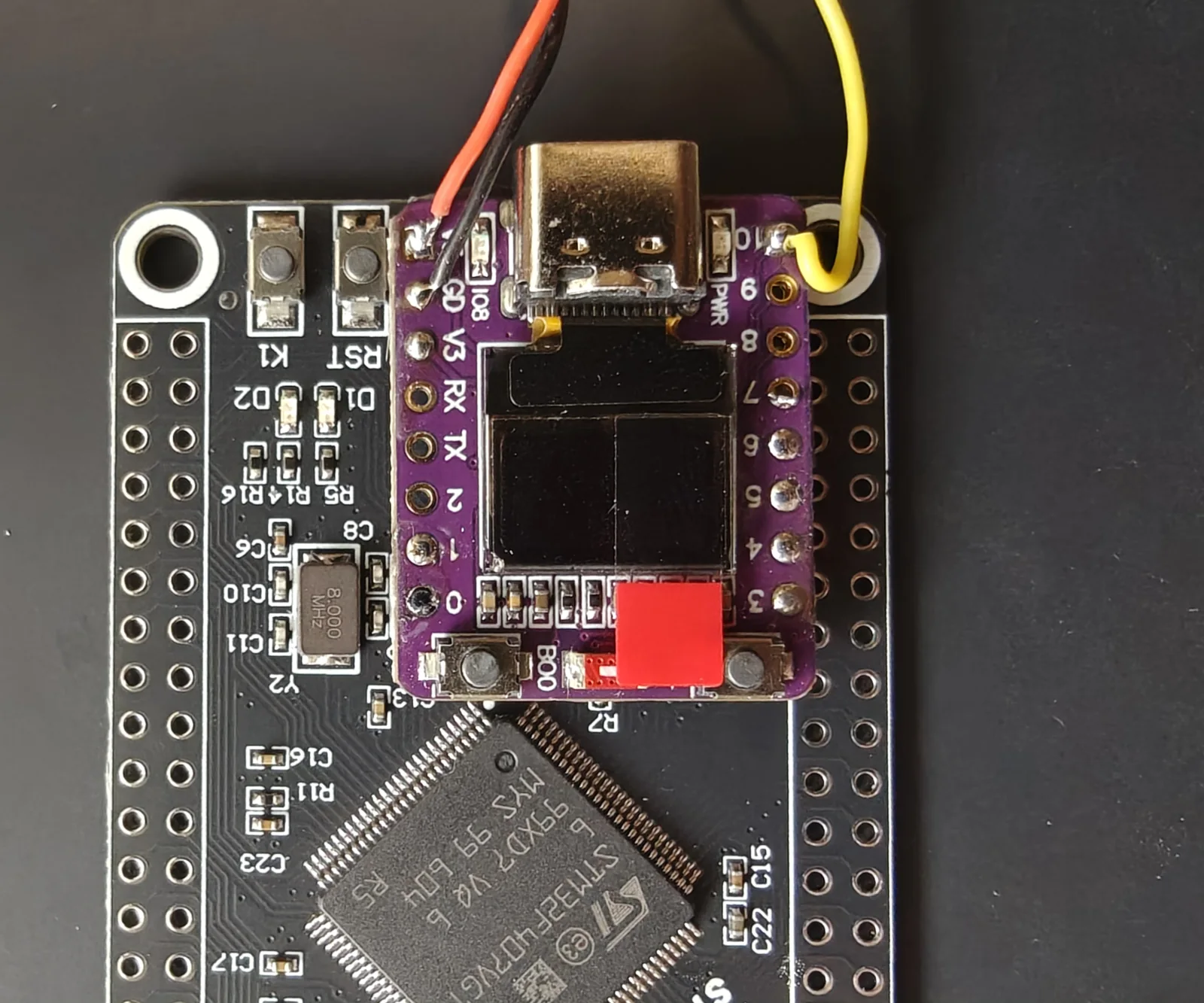
The finished stack.
Note
Ignore the wires in the figure. They are the buzzer, already fitted when this photo was taken. It is not part of stacking the boards — see Buzzer.
Wiring the core
Six wires join the two boards — power, ground, the two-wire link, and the two bootloader control lines. Nothing else is connected at this stage: no sensors, no power distribution, no battery.
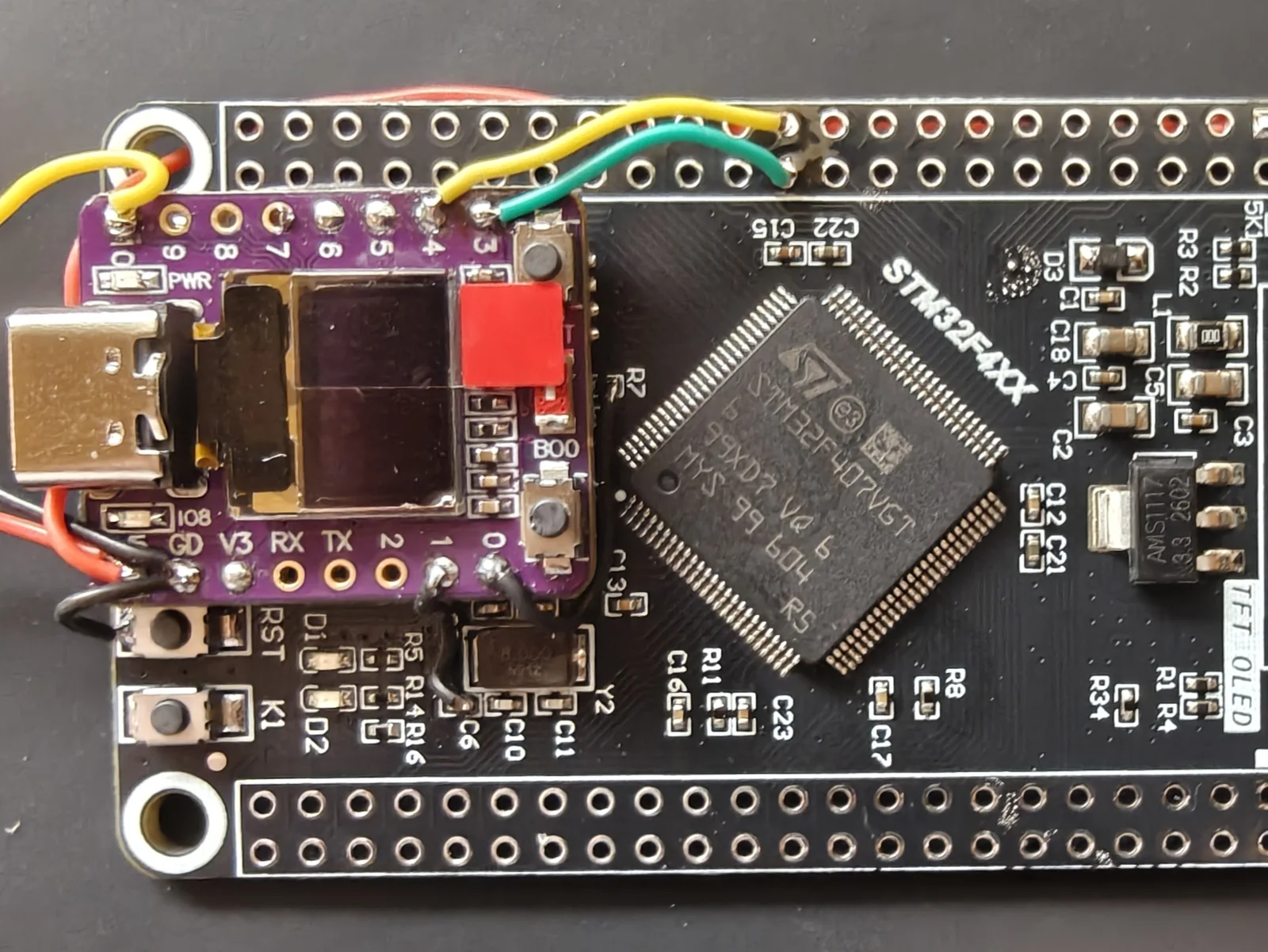
The finished core.
Note
The full board schematic is published by stm32-base.org. Worth tracing these nets yourself before committing an iron to them.
Warning
The OLED marks permanently, and it sits a few millimetres from every pad you solder. It covers most of the bridge board, it is plastic over glass, and the panel is not a separate module you can replace. The tip's point is not the danger — you are watching that. The danger is the side of the tip and the shaft behind it, swinging in while your eyes are on the joint.
Come in from the outside edge, keep the iron's body angled away from the centre of the board, and pull clear entirely between attempts rather than pivoting over the panel.
R7 and C6 are the two surface-mount joints on the core. Do them first, while the board
is still bare and there is nothing to reach over. The technique is in
what you need to be able to do.
Bootloader control lines
The two lines the bridge drives to put the flight computer into its ROM bootloader. This is how the STM32 gets its firmware: its own USB port is never used, so every update reaches it through the bridge.
| Signal | ESP32-C3 | STM32F407 |
|---|---|---|
| BOOT0 | GPIO0 |
BOOT0 |
| NRST | GPIO1 |
NRST |
Finding these two on the flight computer is the awkward part of the build. BOOT0 is easy;
NRST is the only signal on this board that is not brought out anywhere.
BOOT0
Two places to get it, both fine, and both marked on the flight computer pinout.
J1pin 1. The SWD header, top right. Taking pin 1 does not cost you the debugger, which only needs pins 3, 4 and 5. No surface-mount work at all.R7. The 10 kΩ pulldown on the same net, between the main chip and the microSD slot.
Note
The reference build uses R7, because it sits closer to where the bridge is mounted — a shorter wire and a tidier stack, which is its own reward on an aircraft.
It is also the harder tap of the two, and the riskier one. R7 is a smaller part than C6,
so there is less pad to aim at and less mass to absorb heat: it burns, and lifts, sooner.
If you would rather not solder to it, take J1 pin 1 instead — electrically identical,
no surface-mount work, and nothing else about the build changes.
NRST
This one needs an iron on a surface-mount pad. On the whole board NRST exists in exactly two
places: the RST tactile switch, and one end of C6, the 100 nF reset capacitor (marked
104) that runs from NRST (pin 14) to ground.
Caution
On both parts, one pad is the signal and the other is ground. R7 and C6 each run from
their signal to GND. Land on the wrong end and you wire the bridge's GPIO0 or GPIO1
straight to ground.
That failure is silent. The board powers up, runs firmware, and looks completely healthy — it simply never resets and never enters the bootloader, with nothing in any log to say why.
Make sure it is C6, not C9. C9 sits nearby and looks identical, but it is a 10 pF
load capacitor. C6 has C10 immediately to its left and R14/R16 to its right — see
the photograph below.
Check continuity to GND before soldering. The pad that beeps is the wrong one.
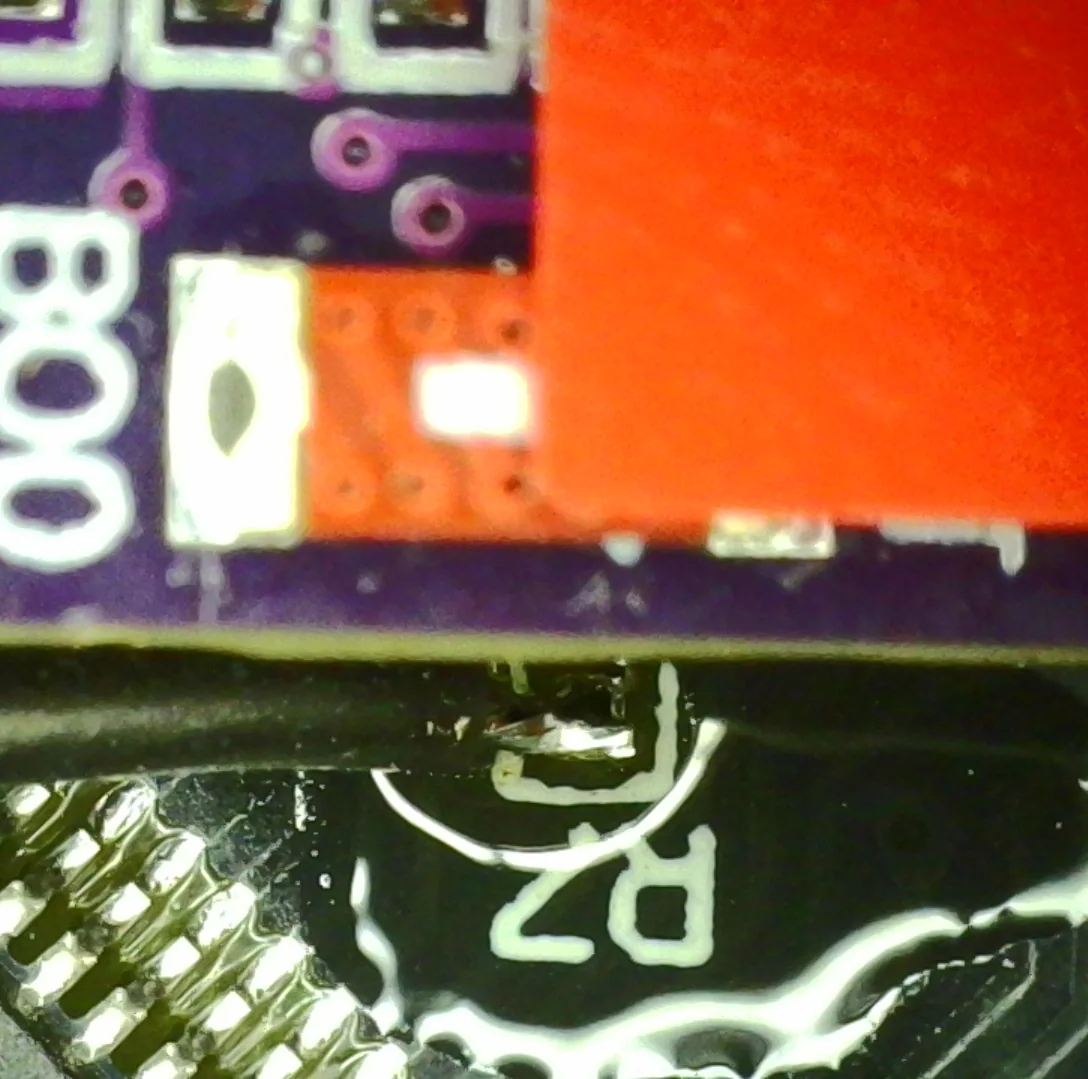
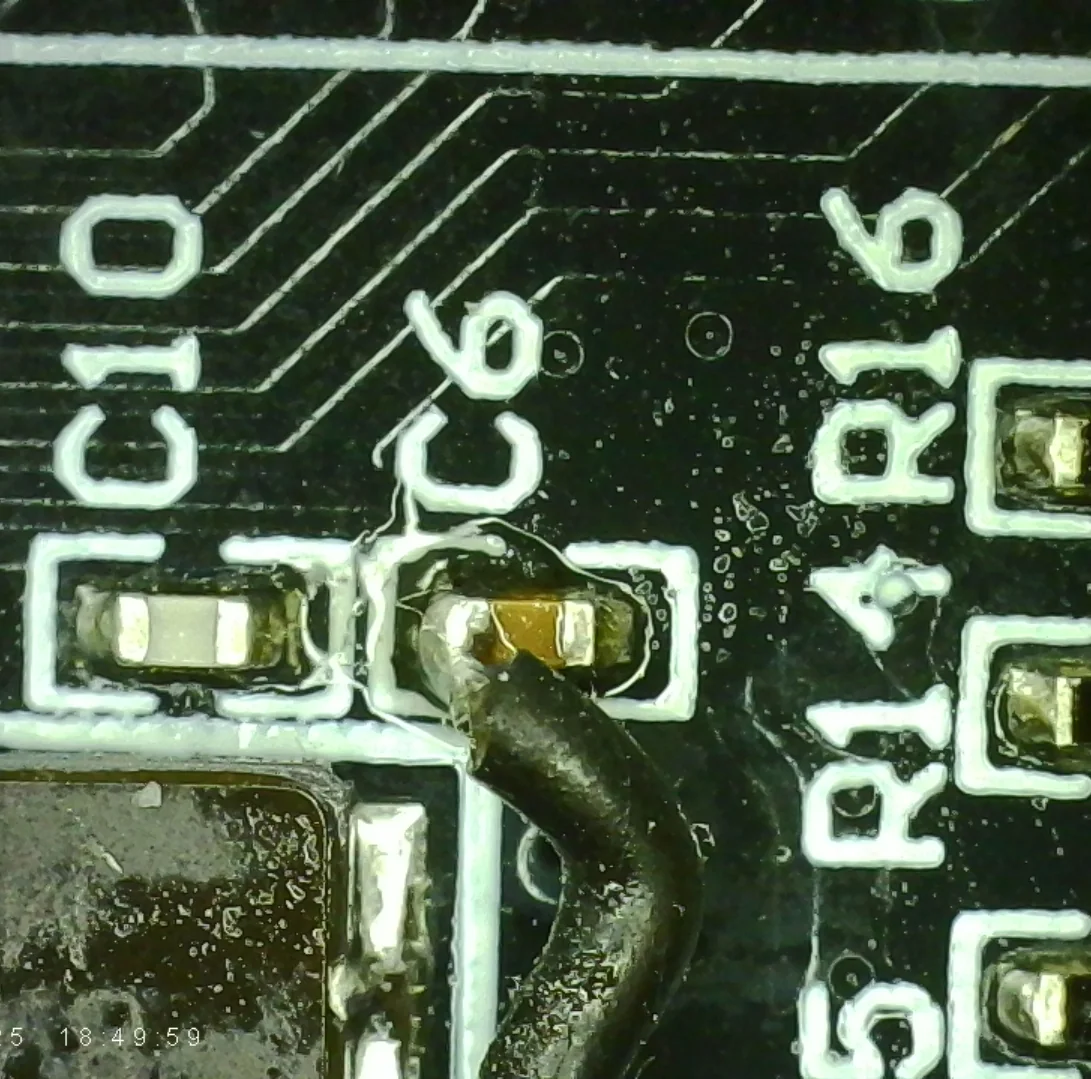
The two surface-mount taps under a microscope. Left: BOOT0 on R7. Right: NRST on
C6.
The link
The one connection that must be right before anything else works. Cross TX to RX.
| Signal | ESP32-C3 | STM32F407 |
|---|---|---|
| FcLink TX → FC RX | GPIO4 |
PA10 |
| FcLink RX ← FC TX | GPIO3 |
PA9 |
| Ground | GND |
GND |
Tip
Keep this link short. The reference build runs the link at 921600 baud, and long
unshielded wire inside a frame full of ESC switching noise is a good way to spend an
evening debugging handshake failures. Twist TX/RX with ground, and if the run has to be
long, drop the baud under make 32raven-menuconfig → Common → FcLink rather
than fight the noise. Both ends read that one symbol, so there is no pair to keep in sync.
VCC and GND
Two wires tie the boards into one circuit: the 5V nets share a rail, so powering either
board powers both, and the ground gives every signal between them a common reference.
Ground is taken from a leg of the RST tactile switch, which sits right beside the bridge
and keeps the run short.
Tip
Any ground will do. There is nothing magic about the switch. The flight computer has ground pins on both headers, and any of them is electrically identical. The switch leg was chosen because it is close to the bridge and keeps the build tidy — if a header pin suits your layout better, use it.
And finally the 5 V wire: the bridge's 5V pad to either of the flight computer's 5V pins,
the top pair on the left header.
Tip
Route it underneath. The 5 V pads are far enough from the bridge that this wire is the longest of the six, and on the top face it would sprawl across the board. Threaded through a hole and run along the back, it takes up almost no room.
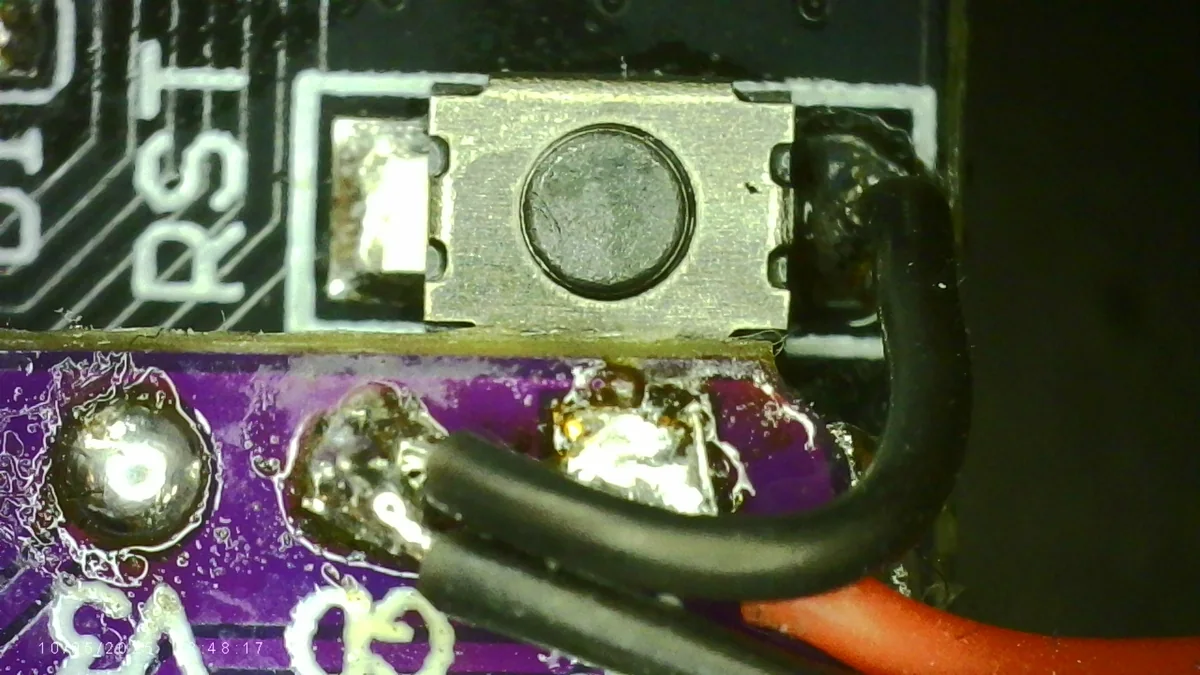
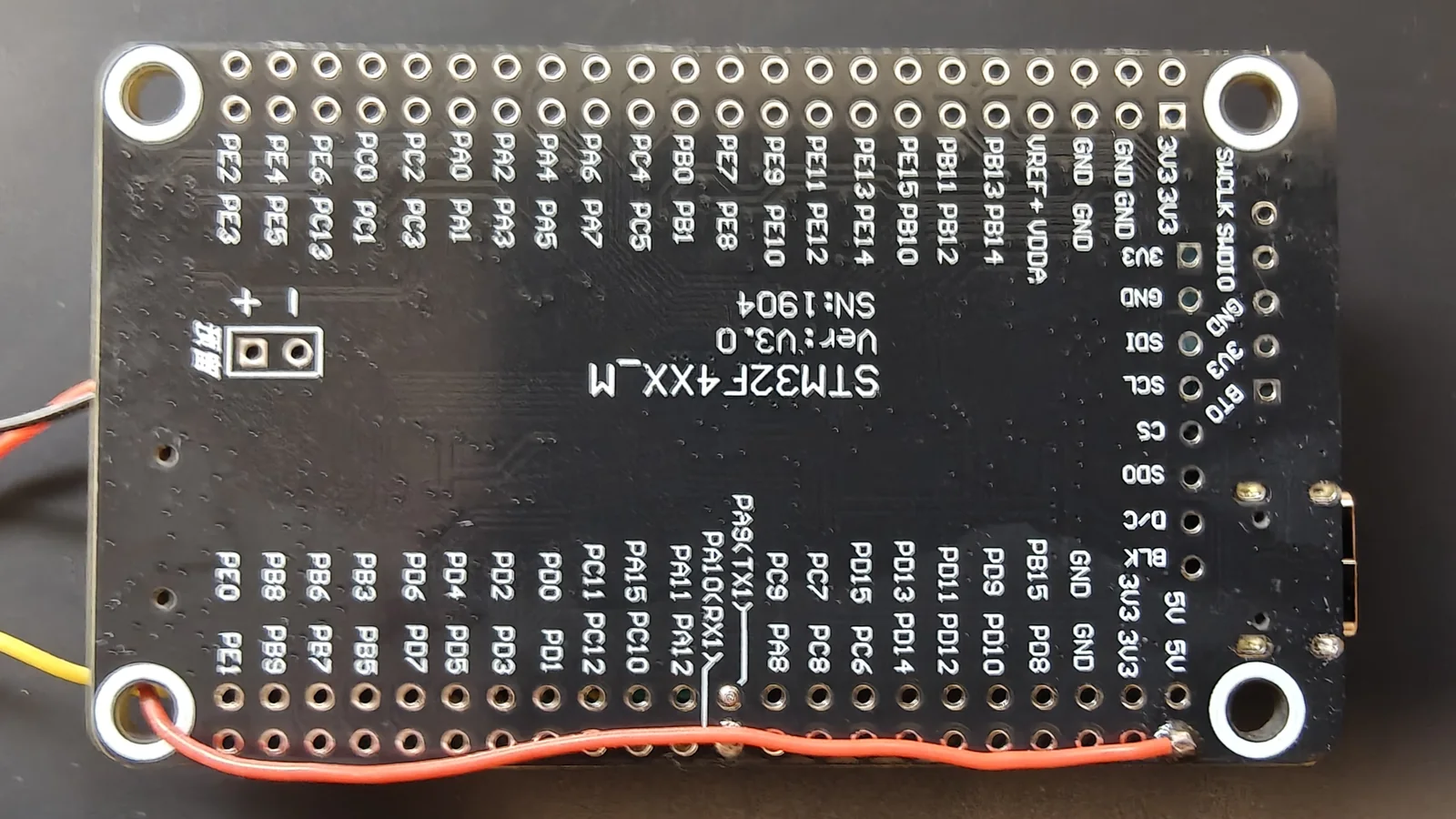
Left — the ground wire on the RST switch. Right — the 5 V run on the underside.
Warning
The 5 V pins have no protection. The +5V pins connect directly to the USB
connector's +5V — no diode, no current limiting. Anything that back-feeds those pins
reaches the USB rail unimpeded.